
MyThesis Overview
Learn how the MyThesis workspace is organized and where to find your thesis, progress, chapters, sources and saving status.
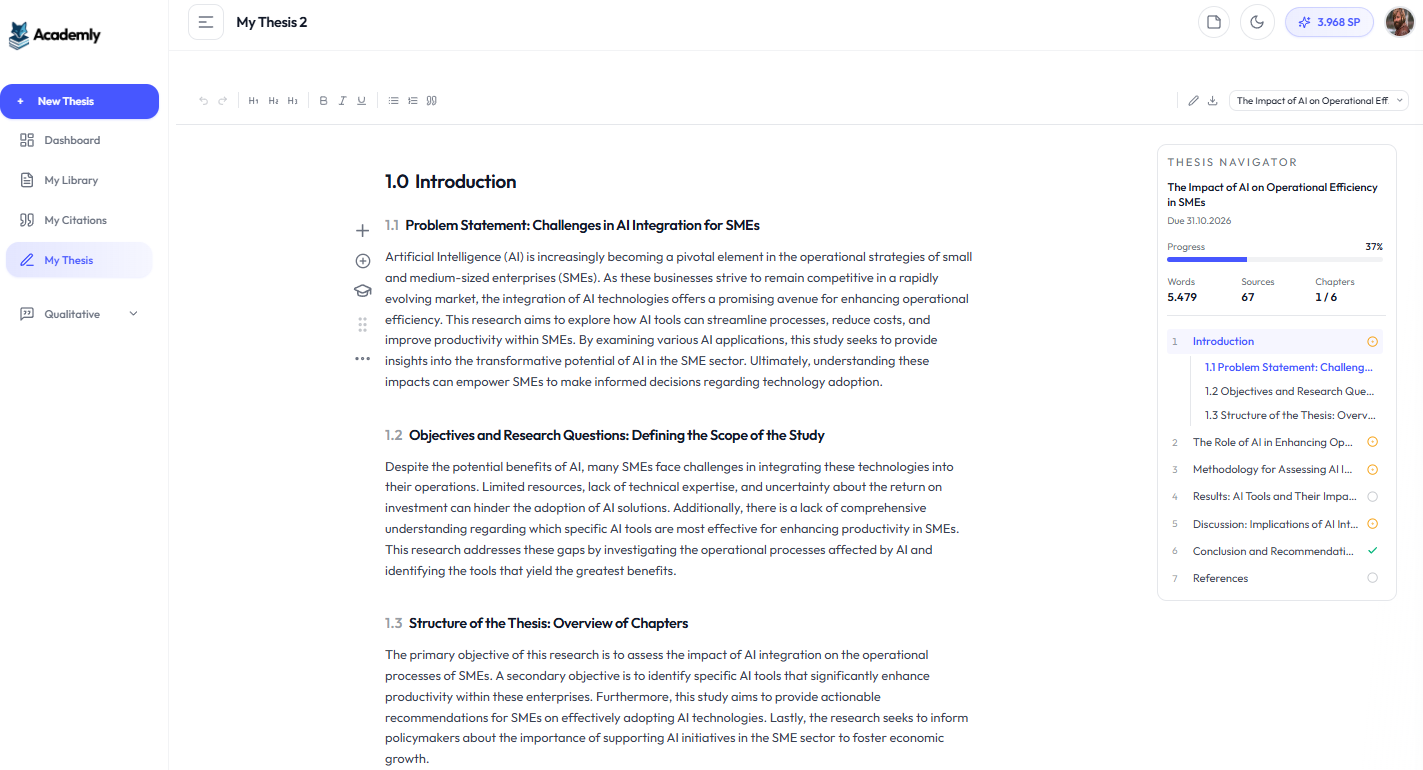
MyThesis is the main workspace for writing and managing your thesis in Academly. Your document is shown in the center while additional controls and thesis information are available around the editor.
What this section is about
This page explains the main areas of the MyThesis workspace and helps you understand where to write, navigate between chapters and sections, check your progress and confirm that your work has been saved.
Opening MyThesis
Open My Thesis from the Academly sidebar. If you already have a thesis, the workspace opens your thesis document. If no thesis exists yet, Academly shows the option to create your first thesis.
The thesis workspace
- Document editor: The main area where your chapters and sections are displayed and edited.
- Thesis Navigator: Shows thesis information, progress and your chapter structure on wider screens.
- Editor toolbar: Contains formatting, editing and export controls.
- Section actions: Icons next to individual sections provide access to structure and AI-assisted tools.
- Saving status: Shows whether changes are currently being saved or have already been saved.
Thesis Navigator
The Thesis Navigator gives you a quick overview of the current thesis. It is displayed on the right side of the workspace when enough screen space is available.
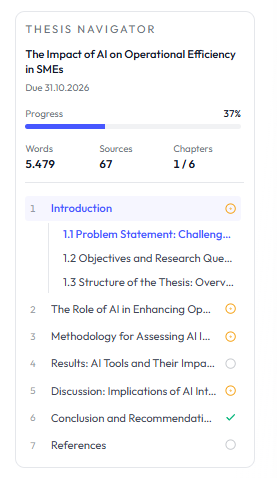
- Thesis title
- Due date
- Overall thesis progress
- Current word count
- Number of connected sources
- Number of chapters
- Chapter list for navigation
Thesis progress
Your thesis progress is calculated from the words currently stored in your thesis sections compared with your target word count. The progress display is capped at 100 percent.
Saving your work
The bottom area of the editor shows your current word count and saving status. While changes are being stored, you may see a saving indicator. Once the current changes have been saved, the interface confirms that all changes are saved.
Tip
Before leaving the thesis workspace after a larger edit, check the saving status to confirm that the latest changes have been stored.