
Exporting Your Work
Learn how to export your thesis from Academly for external editing, review or submission.
Academly lets you export your thesis so you can continue editing, review the document outside the platform or prepare it for submission.
What this section is about
You can export your thesis content as a Word document. The export follows the structure of your thesis and includes chapters and sections in their current order.
When you should export your work
- When you want to continue editing outside Academly
- When you want to share your current thesis draft
- When you need a Word version of your thesis
- When you want to create a checkpoint or local backup
- When you are preparing your work for final review or submission
How to export your thesis
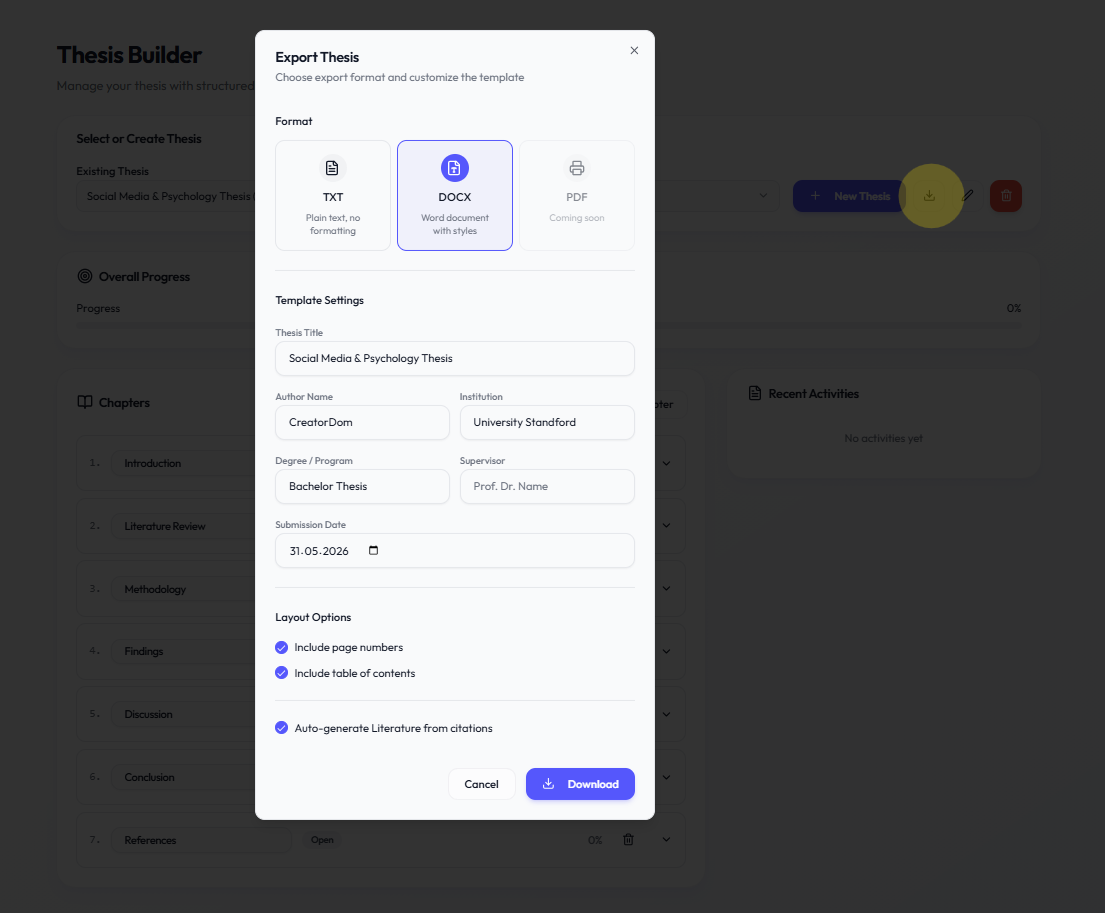
Open your thesis
Go to your thesis workspace and select the thesis you want to export.
Open the export options
Use the available Export action for the selected thesis.
Choose what to include
Select the available export options and decide which thesis content should be included.
Create the export
Generate the Word document using the selected settings.
Download and review the file
Open the exported document and review the structure and formatting before using it for submission or further editing.
What the export can include
- Thesis title and available thesis information
- Chapters in their current order
- Sections and subchapters
- Structured chapter and section numbering
- The thesis content currently stored in your workspace
Important notes
Always review the exported document before submission. Universities often have their own formatting and template requirements, so additional formatting in Word may still be necessary. Regular exports can also serve as useful local checkpoints during your thesis work.
Related sections
- Chapters & Sections
- Data Backup