
Working with the Editor Toolbar
Learn how to format thesis content, undo changes, edit thesis settings and export your work from the MyThesis toolbar.
The editor toolbar contains the main controls for formatting and managing your thesis while you work inside MyThesis.
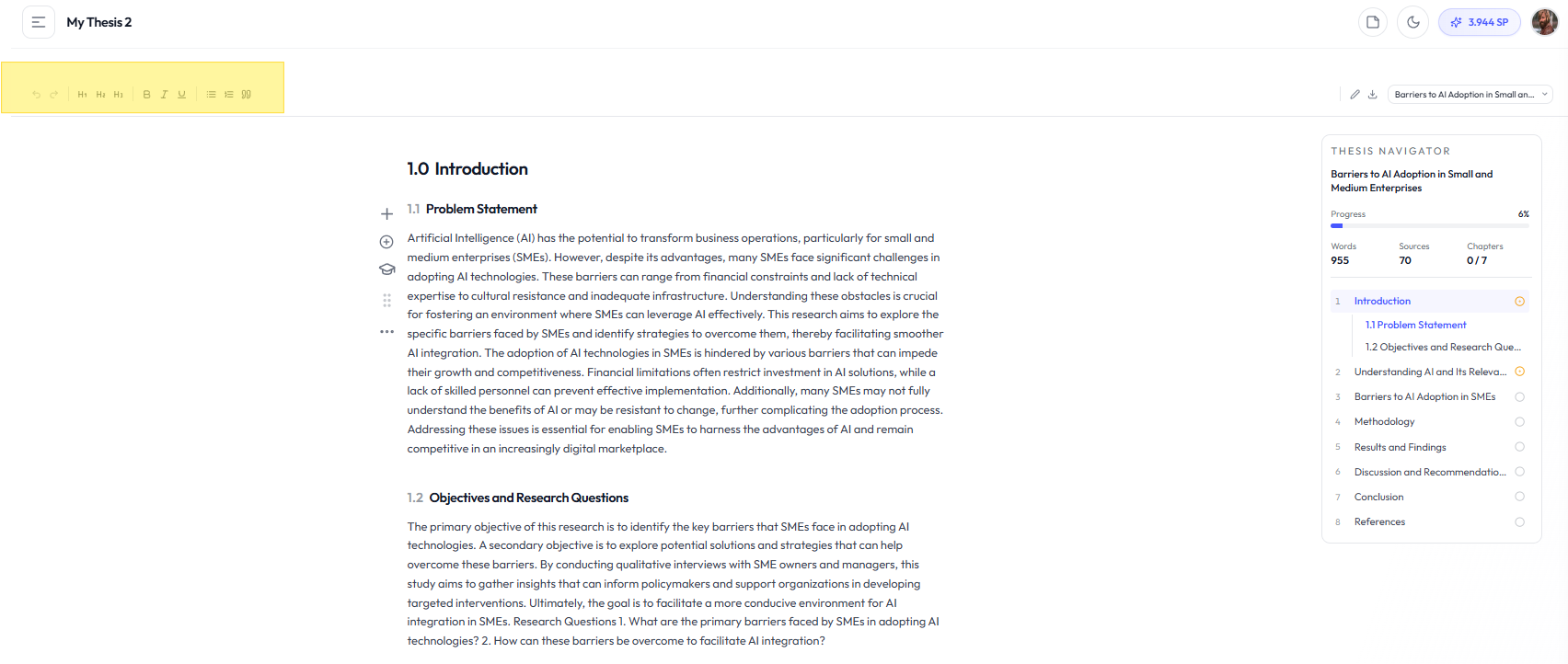
When the formatting tools are available
Text formatting controls become active when a thesis section is focused. Click inside the section you want to edit before applying formatting.
Undo and redo
- Undo: Reverses the previous editor action
- Redo: Restores an action that was previously undone
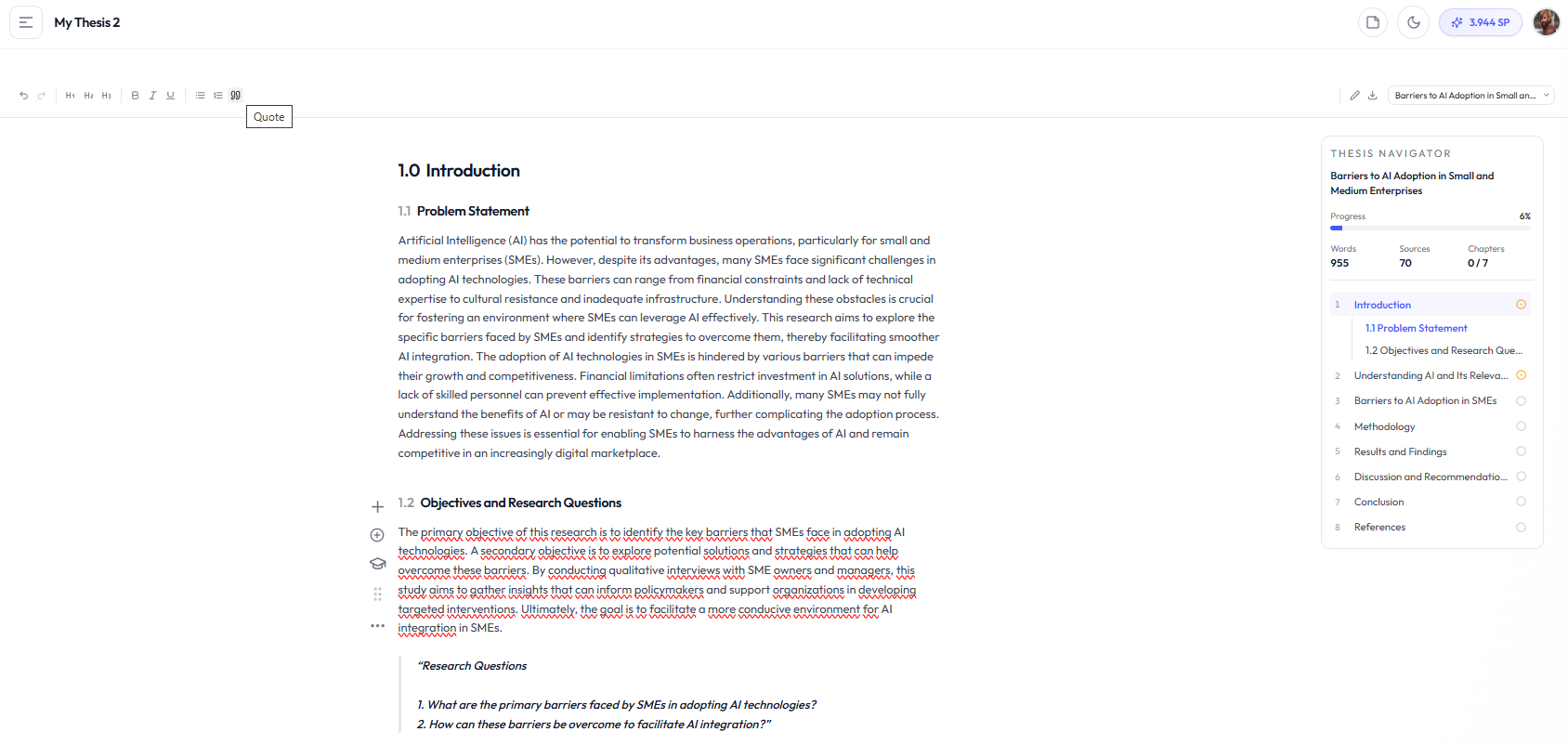
Headings and text formatting
- H1
- H2
- H3
- Bold
- Italic
- Underline
- Bullet list
- Numbered list
- Quote
Edit Thesis
Use Edit Thesis to access the available thesis-level settings rather than editing the content of an individual section.
Export
The Export action lets you create a file from the current thesis.
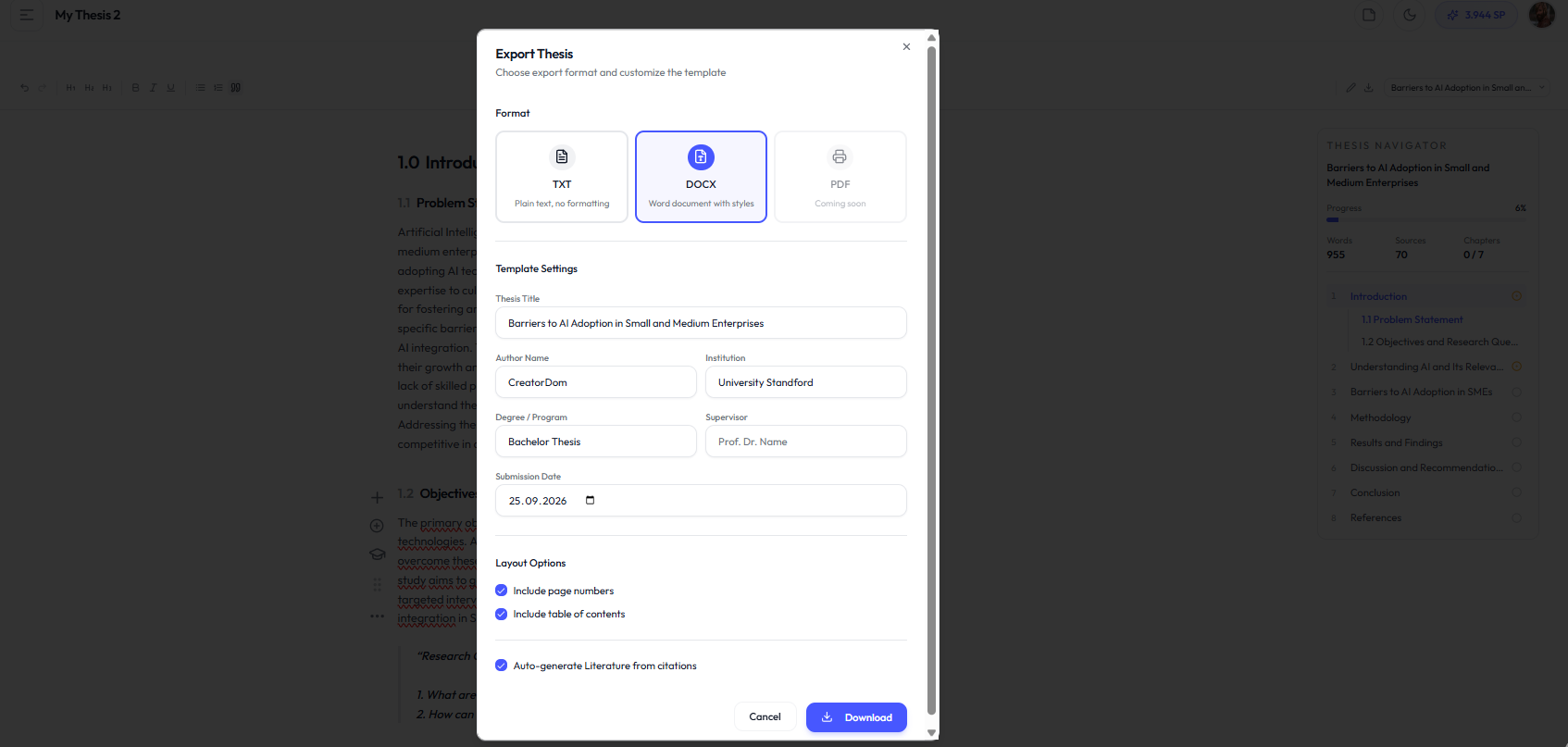
- TXT export
- DOCX export
- Optional table of contents
- Optional page numbers
- Automatic reference list
PDF export
PDF export is currently shown in the interface as coming soon and is not yet available as an active export format.
Switching between theses
If your account contains more than one thesis, the toolbar provides a thesis switcher that lets you move between your thesis projects.