
Citation Manager
Learn how to review, create and manage citation entries in Academly.
My Citations is the central area for reviewing, creating and managing citation entries in Academly.
What this section is about
The Citation Manager brings together tools for checking citation information, adding references manually and managing saved citations in one place.
- Document Check: Review citation metadata associated with an uploaded document
- Manual Entry: Add a citation by entering or pasting bibliographic information
- Add Source: Create a citation entry for a source that is not already available as an uploaded document
- My Citations: Browse and manage citation entries saved to your account
When you should use the Citation Manager
- When you want to review citation information for an uploaded source
- When you need to add a reference manually
- When you want to add a printed or physical source
- When you want to review citation formatting
- When you are preparing or checking your bibliography
- When you want to export saved citation information
How it works
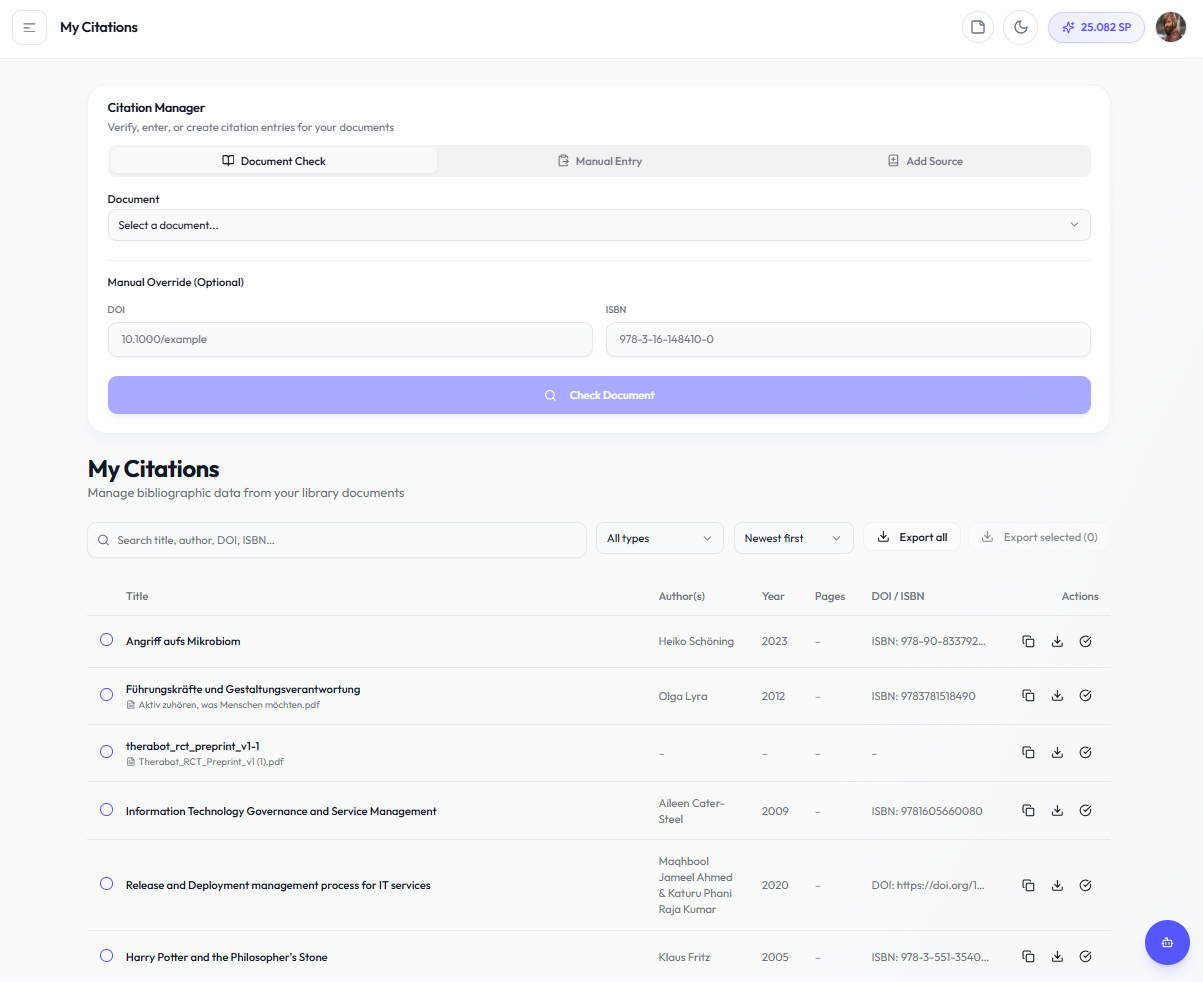
Open My Citations
Go to the My Citations area in Academly.
Choose how you want to add or check a source
Use Document Check, Manual Entry or Add Source depending on the reference you are working with.
Review the citation information
Check the parsed fields, available metadata and any formatting suggestions shown by Academly.
Save the citation
Save the reviewed citation to your citation library when the information is correct.
Manage your citation library
Use the citation table to find, sort, filter, export or remove saved entries.
Available citation tools
- Search saved citations
- Filter citations by available source information
- Sort citation entries
- Review bibliographic metadata
- Export supported citation data such as RIS
- Delete individual citation entries
Important notes
The Citation Manager helps you organize and check references, but automated citation information should still be verified. Citation requirements can differ between universities, departments and individual courses. Always follow the guidelines that apply to your work.
Related sections
- Uploading Documents
- My Library
- Sources & Evidence